Category: Articles

  • Reactivation of the USS Blueback Submarine Amateur Radio Station (W7SUB)

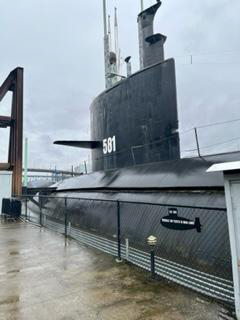
    For those who may not already know, the USS Blueback submarine is part of the Oregon Museum of Science and Industry (OMSI), located on the east side of the Willamette River just below the I-5 bridge here in Portland. The submarine is moored in the river right in front of the museum. The Blueback was decommissioned in 1990 and brought to the Museum in 1994.

    The radio room on board the sub has been inactive for the past several years primarily due to the pandemic. The person in charge of the radio room (called the “CHOP” in the Navy) has decided to step back from that role. OMSI has been looking for new leadership to reactivate the station and carry on operations. Several MCARES members who have been working as volunteers at OMSI – Bob Cady W7JNM, Ken Cone K7BXI, and Steve Hall W7SRH – learned of the desire to reactivate the station and have decided to take this on.

    Bob, Ken, and Steve recently met with the OMSI submarine staff and the outgoing “CHOP” (station manager). They were able to reactivate the station which included testing the antennas to ensure they were functioning properly, bringing power back to the radio equipment, and locating station documentation. They are also learning about how radio room operations might fit into or conflict with submarine tours.
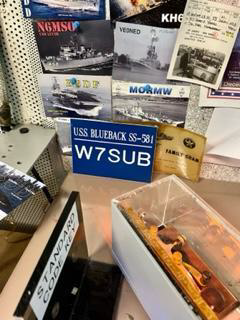
    The new radio team is in the process of developing an operations schedule to include several special events and some form of educational opportunities for those interested in amateur radio. If appropriate, the team will seek authorization for other MCARES members to visit the station and participate in these events. An update will be provided when the station operating schedule is finalized.

    Photo credit: Steve Hall W7SRH
  • Project Considerations

    A great COVID-19 project might be the installation of a new mobile radio, or to inspect and do some maintenance on an existing installation!

    Installation Items to Think About

    • Never use existing vehicle wiring to power any amateur radio gear. This includes fuse taps and accessory sockets!
    • Factory-supplied 120 volt inverters may cause RFI, and arcing can occur between the springloaded tip of the accessory socket plug and the positive contact inside the socket.
    • Solid wire should never be used in a mobile installation. This includes CAT5 cable often used as a less expensive alternative to factory-supplied, modularized cables.
    • Most mobile transceivers operate on 13.8 VDC. If the voltage drops much lower than 12.2, most transceivers will simply shut off or have lower power and transmission quality issues. Use of #12 gauge wire will work for most installations and prevent voltage drops.
    • Twist-on wire nuts should never be used as a splice.
    • One of the most important requirements for secure terminations, is using the right crimping tool.
    • Using the wrong size terminals such as #12 terminals for #18 wire is a common error. Use the correct size and try to use ring connectors.
    • All connectors should be both crimped and soldered to insure strength and low resistance connections. Try to avoid butt connectors.
    • Insulation temperature rating of vehicle wiring should be at least 90°C (195°F) in the passenger compartment, and 105°C (220°F) in the engine compartment.
    • All exposed wire should be covered with protective split loom.
    • Abrasion resistance is also important. XLP and PVC insulation materials are both acceptable, if they’re rated at the correct temperatures.
    • Correctly installed wiring should be out of sight, protected from abrasion and sharp edges, and positioned in such a way as to eliminate hazards and interference from or to vehicle wiring and controls.
    • Do not use vinyl electrical tape to secure the cables. Although the vinyl may not fail, the adhesive eventually becomes elastic which allows the tape to unwrap.
    • All wiring should be secured to prevent vibration damage to the insulation and/or connection points.

    Power Connection Concerns

    • Some aluminum-bodied vehicles require special installation practices with respect to galvanic corrosion. Check the factory recommended installation procedures.
    • Preferably connect the positive power to the positive battery terminal and the negative lead to the same chassis grounding point as the battery’s chassis ground point and not to the battery negative terminal.
    • The negative lead fuse should not be removed. If the grounding point should lose its integrity, excessive current could flow through the transceiver’s negative lead.
    • It should be noted that, in some cases, the battery’s chassis grounding point is inaccessible. If this is the case, attach the transceiver’s ground connection as close as possible.

    Maintenance Items to Consider

    • Time, dirt, and oxidation can cause connections to increase in resistance, which increases the voltage drop, so part of routine maintenance should include removing and reinserting fuses, power pole splices, and even transceiver-mounted power connectors.
    • There will always be some level of common mode current flow in any mobile installation. Poor antenna mounting techniques (mag and clip mounts) and locations (trailer hitch and bumper mounting) increase the level and proper choking of these currents must be applied.
    • Twisting the positive and negative power leads together to enhance noise immunity and/or cure alternator whine and/or cure ignition and RFI are myths.
    • Your transceiver fuses are normally ATC style, while most automotive fuses are ATO style.

    Terminal Blocks

    If possible, consider installation of a terminal block such as the RigRunner 4005. Connect the terminal block to the battery and battery chassis ground, and remember to fuse both leads. Now you have several power pole connection points in your vehicle to attach radios and other devices. Excess cabling should be shortened as required.

    Unfortunately, some amateurs just can’t bring themselves to cut up a factory power cable. If you need to extend the cable later, take that cutoff piece (you did save it because you’re a typical ham, right?), apply power pole connectors to it, and you’re back to a full-length cable.

  • Hardware 101: Automatic Antenna Tuners

    Automatic antenna tuners: the magic box that makes everything great!  Before we get one and expect it to provide us with winning lottery numbers, the location of the Lost Dutchman mine, or the ability to talk to the International Space Station on your HT, let’s look at what it does.

    The basic antenna tuners want to add inductance or capacitance to your antenna system, and why do we want to do that? For an antenna to be resonant and work the best, the physical length has to match the wavelength of the frequency we are transmitting.

    If we put a random length of wire up in a tree as an antenna,

    • it is going to be too long for some frequencies (poor match),
    • it will be too short for some frequencies (poor match),
    • and it will be just right (resonant) on certain frequencies (good match).

    By adding inductance or capacitance, we are able to fool the transmitter into thinking the wire is the correct length and matches the transmitter, and when the transmitting frequency matches the length of the wire, we don’t use the tuner.

    So, keep in mind, if you are using an antenna that is already resonant or tuned for the frequency that you intend to use, a tuner may actually make things worse. As the old saying goes, “if it’s not broken, don’t fix it!” If you’re having trouble tuning or transmitting on your antenna, try bypassing the tuner; you may find the antenna is matched and your transmitter is now happy. But, if you do find yourself using a random wire as an antenna (mine is 53 feet long…), you will certainly want an antenna tuner to do the magic and make the wire appear to change lengths to match your transmitter frequency.

  • Hardware 101: SWR Meters

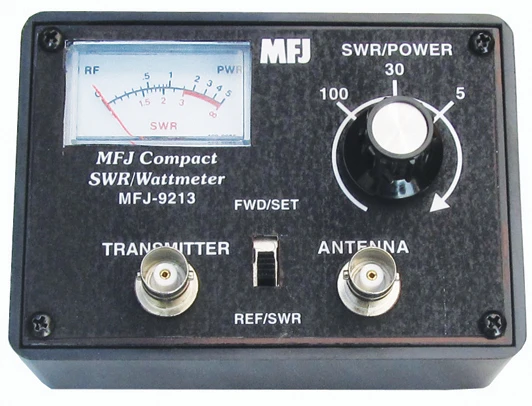
    If you want to monitor you system’s performance, a good SWR (standing wave ratio) meter is a key piece of hardware. With a quick glance at the meter, you can see how your radio, coax and antenna are working. SWR meters come in many shapes, sizes, and styles.

    Direct reading meters such as the MFJ-9213 can be identified by a FWD-REF switch and a common dial with a single needle. These meters require the user to set the switch to FWD (forward power) and then push the microphone PTT button and stay in the transmit mode while adjusting the meter to the SET or CAL line on the meter. Then release the PTT button, set the meter to REF, and key the microphone again while reading the SWR value on the meter.

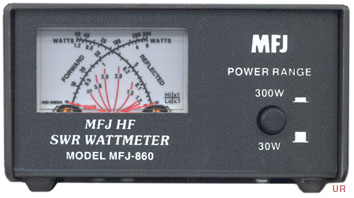
    Dual or cross needle meters such as the MFJ-860 require no adjustment. Push the microphone PTT button and one needle will show the power output, while the second needle will show the reflected power. The place on the meter where the needles cross indicates the SWR.

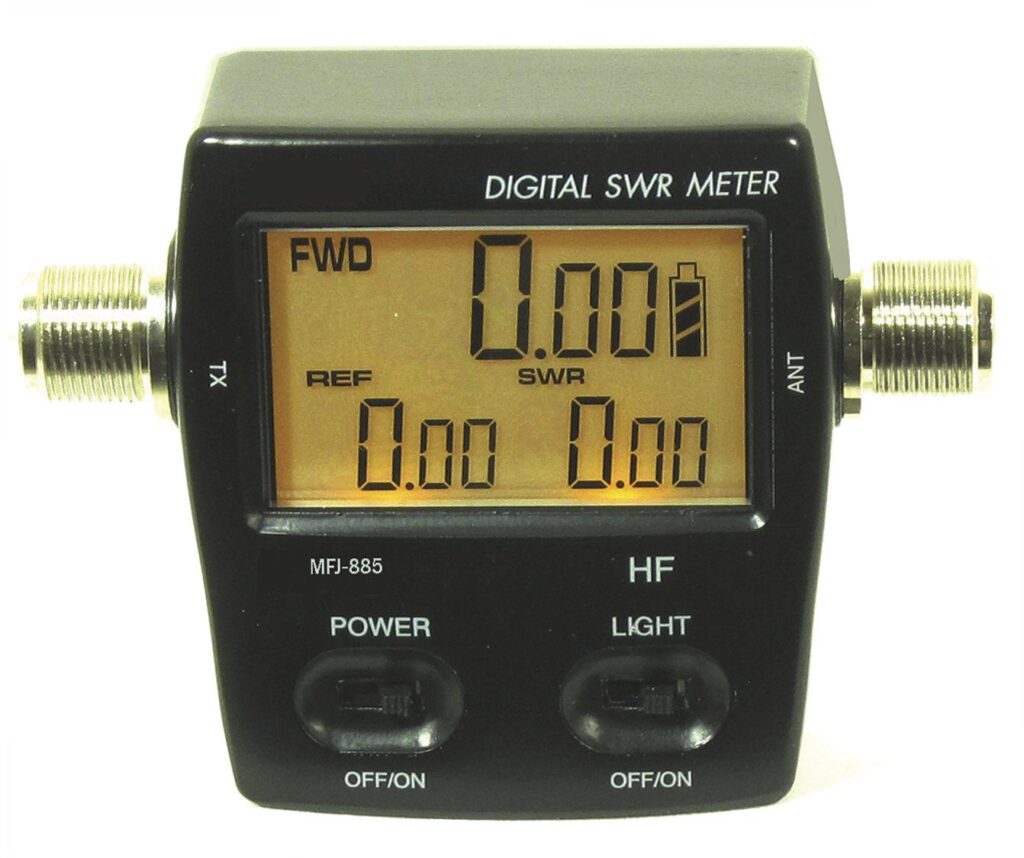
    Digital meters such as the MFJ-845 require no adjustments and are the easiest to use. Just push the microphone PTT button and directly read the values from the digital display.

    So what does this thing tell me? It will tell me if my transmitter is putting out the correct power. It will tell me how much of that power is being reflected back to the transmitter and it will tell me how well my antenna system is matched to the frequency I am using.

    One very important detail about SWR meters is that they are frequency specific. Using an HF meter to test UHF frequencies will result in bad readings. So always make sure that you are using an SWR meter that matches the frequency you are transmitting on. There are many of the old CB meters out there – but remember they were made to monitor frequencies around 27 Mhz and do not work well on other frequencies.

  • Dos and Don’ts when Operating on a MCARES Net

    DO

    • Listen to Net Control’s instructions and check in as instructed, giving all information asked for, and nothing else.
    • Check in with your call sign phonetically. After this, you do not need to give it phonetically.
    • Especially on repeaters: PTT – inhale – talk; on linked repeaters: PTT – count to three – inhale – talk.
    • To eliminate doubling with someone else, listen before you talk.
    • If there is a double that doesn’t involve you, wait for net control to straighten it out and acknowledge those involved in the double.
    • If net control makes a mistake in acknowledging your call sign, say “correction” and then wait to be acknowledge before giving your correction.
    • Be forgiving. Be patient.
    • GO SLOWLY when transmitting anything the receiving station is writing down. Go even slower if asked to repeat.
    • Learn and use ITU phonetics.
    • Be efficient. Use pro-words and “short talk” such as: “with traffic”, “I say again”, “correction”.
    • If asked to repeat something, repeat it and spell phonetically.
    • If you are talking for more than two minutes, unkey the mike momentarily to let the repeater reset.
    • After check-ins, if you have something to say, give your call sign and wait for net control to acknowledge you before continuing.

    DON’T

    • Don’t challenge net control on the air.
    • Don’t try to check in before net control opens the net.
    • Don’t check in early; OK to check in late if you got lost in a double or simply joined late.
    • Don’t use Q codes.
    • Don’t sign in and say “no traffic.” Just say “with traffic” if you do have traffic to relay.
    • Don’t say “I pause,” or “I’ll let this drop”, etc. when you unkey the mike.
    • Don’t follow along and break protocol if you hear others doing so.
    • Don’t leave before the end of the net without signing out.
    • Don’t check in again if you are not recognized immediately. Instead, wait for net control to acknowledge the next group of check-ins. If you are not recognized then, try again in the next group or at the end of check-ins when net control asks for “late or missed stations.”
  • Hardware 101: Amp Meters

    Is your radio acting strangely? Coughing? Runny antenna? Watery display?

    A quick way to check its overall health is with an amp meter. If power is going out, then your radio will be sucking power in! The amp meter is the thermometer of the radio world.

    A quick review of your manual will tell you what your radio consumes when putting out full power. Most mobile radios will consume 20-22 amps.  So don’t hesitate; if your radio seems sickly and you think it’s got the coronavirus, stick an amp meter in its mouth and key the mic and see if its temperature is normal. 22 amps on the meter? It’s not a virus!

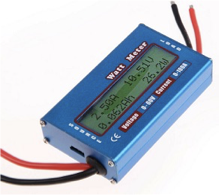
    If your 700 amp, klystron powered, 473 pound linear (another topic for another day!) power supply does not have a built in amp meter, you can certainly find one, like the one pictured here, on Ebay for around $10. A quick set of Anderson power pole connectors on each end and the doctor is ready to check radios!

  • WebSDR

    Are you locked down and looking for things to do? Visit WebSDR.org and listen in on hams all over the world. With WebSDR you will be able to take control of receivers worldwide and tune in on all of the bands in all of the regions. Someone not interested in ham radio (that can’t be us!) activities? Then tune in to the European stations and brush up on your French language skills.

    It’s as easy as starting up your computer and going to www.websdr.org.

    • Scroll down the main page and you will see ham stations from all over the world.
    • Pick a region
    • Pick a station
    • Pick the band you would like to listen to

    It’s that easy! You’re in control. Scan the waterfall (now you know what that purple thing up there is called!) and pick out the strong stations as they will be the brighter vertical lines. You can also try the weaker stations as shown by the faint lines. Or maybe the whole band is quiet with no lines at all – just change bands and keep going! Hear something rare or exotic? Create a log on your favorite SDR site and log in your treasure.

    Want to practice your CW? Tune down to the low end of the 40CW band and find a station; they are always there! Want to practice more later? Then just start the audio recording and play it back at another time.

    So, while locked in, stay out of the cookie jar and junk food, and go play in SDR land!

  • Managing Stress at Home

    Pulling out a little hiking wisdom today:

    When you’re lost, stay where you are.

    Since we can’t go anywhere anyway, why not use the time to recharge in whatever way makes sense for you? Sleep in – or stay up – until your favorite net. Dust out the ham shack. Hug a housemate or reach out over the air waves and 73 someone.

    We don’t have to solve any problems today; we’re right where we’re going to be for a while. Let’s use this universally imposed time out for extreme care of self and connection with others.

  • Staying Calm During a Crisis

    We’ll have a full training on this topic at the September meeting. In the meantime, here is some food for thought. As emergency amateur radio operators, we are called on to pass information during crises/disasters. Our roles don’t include a lot of decision making. Exhale.

    The bare minimum here is to show up, team well, and get the job done. Know how to use your equipment, where to be, who to connect with, and who is in charge. If any of these concepts cause you angst or raises your blood pressure, that’s your first area of focus. Spending some time and energy there will increase your confidence and reduce your stress in an actual event.

    Here are some basic pointers for managing yourself as the pressure increases:

    • Take care of your body. Make sure you have ample food and water as well as clothing matched to the environment. Get adequate rest before, during, and after.
    • Know how to operate your equipment. If you don’t or you’re having an off day, you can still be helpful. Volunteer for a role you feel more comfortable doing.
    • You need to be able to accept and follow directions, given directly.
    • Know when to take a break (self or other directed), when to ask for help, and when to offer.
    • SLOW down. Equipment fails; you don’t have to.
    • Don’t ask “what if?” If you can’t avoid this common pitfall, try changing it to “how?”

    Most people are prone to increased stress in stressful situations. It’s not rocket science, it’s life preserving. It’s your job to know and work with your triggers in stressful events/situations. Sharing these with your team lead in advance can assist with assignments and practice opportunities during drills.

    Teaming well and taking care gets the job done.

    In September we’ll go over both in-the-moment and long-term strategies/concepts for maintaining calm during stressful events.

  • Setting up HF Winlink Using Soundcard Modes

    Last fall I bought a used ICOM IC-7200 radio so I could start operating on the HF bands. Part of the attraction of this radio is the built-in soundcard. It takes a single USB cable for both the soundcard and for radio control. My goal was to use Winlink on HF.

    I found a Youtube video by Commsprepper on setting up Winlink Winmor for this specific radio. From this video, I learned about some great information included with Winlink:

    In Winlink, click on Help -> Help Index…, then click on IC-7200 or Radios with Built-in Soundcards or Sound Cards or Winmor Setup

    In my case, the IC-7200 section had everything I needed, and the video showed the radio side of the steps. The basic information needed from the radio is the USB device address, plus there were a couple of mode changes.

    Next start Winlink, open a “Winmor Winlink” session, click on Settings, and then click on “WINMOR TNC Setup”. (You may get a Setup window the first time you select a Winmor session.) You should only need to set the “WINMOR Capture Device” and the “WINMOR Playback Device” to your radio’s sound device (e.g. “USB Audio Codec”). Click “Update” when done.

    Click on Settings again, then click on “Radio Setup”. In the “Select Radio Model” pull-down, select your radio model (I selected Icom 7200). Enter the radio’s configured USB address (in my case, in the “Icom Address” field), and click on “USB Digital” so Winlink can control the radio. For the “Radio Control Port” field, select the radio’s COM port in the “Serial Port to Use” field, and set the radio’s configured baud rate. For the “PTT Port”, select the radio or COM port in the “Serial Port to Use” field. Click on “Update” when done.

    Now click on “Channel Selection” and get the current list of HF RMS Gateway channels using the “Update Table Via Internet” option. Pick a channel with a high “Path Reliability Estimate” and “Path Quality Estimate”. Double click on a channel row to select the channel and close the HF Channel Selector window. You should see/hear the radio change to the frequency of the selected channel.

    Now click on Start to initiate a connection attempt. (Commsprepper also has a video called “SignaLink and Winmor”, which shows a session using Winmor.)

    Setting up for ARDOP follows a similar sequence. Open an “ARDOP Winlink” session, click on Settings, then click on “Ardop TNC Setup” to enter the “Ardop Capture Device” and “Ardop Playback Device” (set to the USB Audio Codec), and then do the same “Radio setup” steps mentioned above. If you have already setup Winmor, these settings may be set for ARDOP too.

    More information:
    This document has good information overall, and a detailed Winmor setup section.