
Tag: Winlink

  • Setting up HF Winlink Using Soundcard Modes

    Last fall I bought a used ICOM IC-7200 radio so I could start operating on the HF bands. Part of the attraction of this radio is the built-in soundcard. It takes a single USB cable for both the soundcard and for radio control. My goal was to use Winlink on HF.

    I found a Youtube video by Commsprepper on setting up Winlink Winmor for this specific radio. From this video, I learned about some great information included with Winlink:

    In Winlink, click on Help -> Help Index…, then click on IC-7200 or Radios with Built-in Soundcards or Sound Cards or Winmor Setup

    In my case, the IC-7200 section had everything I needed, and the video showed the radio side of the steps. The basic information needed from the radio is the USB device address, plus there were a couple of mode changes.

    Next start Winlink, open a “Winmor Winlink” session, click on Settings, and then click on “WINMOR TNC Setup”. (You may get a Setup window the first time you select a Winmor session.) You should only need to set the “WINMOR Capture Device” and the “WINMOR Playback Device” to your radio’s sound device (e.g. “USB Audio Codec”). Click “Update” when done.

    Click on Settings again, then click on “Radio Setup”. In the “Select Radio Model” pull-down, select your radio model (I selected Icom 7200). Enter the radio’s configured USB address (in my case, in the “Icom Address” field), and click on “USB Digital” so Winlink can control the radio. For the “Radio Control Port” field, select the radio’s COM port in the “Serial Port to Use” field, and set the radio’s configured baud rate. For the “PTT Port”, select the radio or COM port in the “Serial Port to Use” field. Click on “Update” when done.

    Now click on “Channel Selection” and get the current list of HF RMS Gateway channels using the “Update Table Via Internet” option. Pick a channel with a high “Path Reliability Estimate” and “Path Quality Estimate”. Double click on a channel row to select the channel and close the HF Channel Selector window. You should see/hear the radio change to the frequency of the selected channel.

    Now click on Start to initiate a connection attempt. (Commsprepper also has a video called “SignaLink and Winmor”, which shows a session using Winmor.)

    Setting up for ARDOP follows a similar sequence. Open an “ARDOP Winlink” session, click on Settings, then click on “Ardop TNC Setup” to enter the “Ardop Capture Device” and “Ardop Playback Device” (set to the USB Audio Codec), and then do the same “Radio setup” steps mentioned above. If you have already setup Winmor, these settings may be set for ARDOP too.

    More information:
    This document has good information overall, and a detailed Winmor setup section.
  • How to Prepare for and Participate in a MCARES Drill

    The Winlink Drill from Home on February 9 indicated that we need to improve in three basic ways: understanding the drill guide, testing knowledge and equipment, and sticking to business.

    The first and last step in preparation for any drill is to read the Drill Guide. This is usually emailed to the entire membership up to a week or two before the drill. Read it carefully all the way through as soon as you receive it and be sure you understand what is expected of you. If you don’t understand something, email leadership [at] multnomahares [dot] org for clarification. If we get the same question several times, we will revise the guide. Watch for a last minute revised drill guide and read it all the way through again. About an hour before the drill starts, read the drill guide all the way through again, and again, and again. Print it, highlight the tasks and instructions you will need and keep it with you throughout the drill.

    As MCARES operators, we should always have our gear in top operating order and know how to use it. Drills give us an opportunity to check this. At least a day or two before the drill, check out the equipment you will be using, including the software. Are your batteries fully charged, including your laptop? Is your Winlink Express version up to date? If you don’t do this often, you may need to reinstall with the latest version. Update the channel selection too. Waiting until the last minute may lead to unexpected delays if your operating system decides it needs a major update and you need to reinstall Winlink Express. Do you remember how to send and reply to Winlink template messages? Can you connect to two or three gateways?

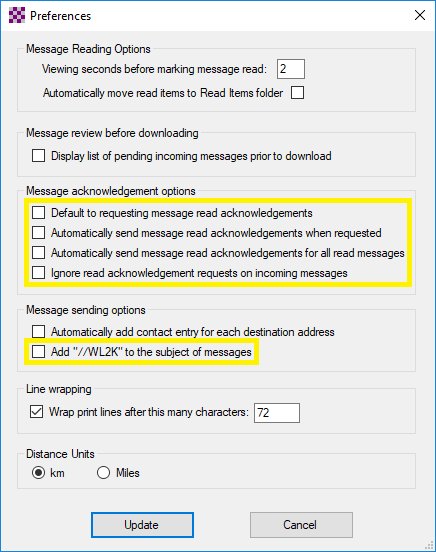
    Are your settings and preferences correct? Everyone, please, in Winlink Express click Settings then Preferences.

    • All of the boxes in the “Message acknowledgement options” section should NOT be checked.
    • In the “Message sending options” section, the “Add //WL2K’ to the subject of messages” should NOT be checked. //WL2K is ONLY needed if you are sending a message FROM a standard (not Winlink) email address to a Winlink address AND your standard email (from) address is not in the recipient’s whitelist.

    In a disaster situation and in drills, the airways and gateways are very busy. That is why we stress keeping all communications brief and to the point and we do not engage in chit-chat and social niceties. This goes for voice as well as Winlink. Do not send any messages that are not asked for in the drill guide. Do not send copies (cc) unless requested. Do not ask for or send receipt acknowledgement messages. Do not resend a message if you don’t get a response quickly. Do not send large file attachments. (One gateway crashed because of this.) All of these things steal time from the frequencies and gateways and slow the delivery of the essential message traffic.

    Every drill should be treated as if it were a real disaster response. Preparing for drills keeps us ready should something happen and we are activated. Following these suggestions (did I mention to read the Drill Guide?) will keep us all on our toes and ready to serve when we are called upon.

  • PRRO Certification Workshops

    I am leading a set of workshops for members who would like to be certified in Winlink operations. I will provide an overview of the Winlink system and will go into detail on configuring Winlink Express, sending and receiving messages, and using templates. Plenty of time will be provided for hands-on practice, and operators who feel ready will have an opportunity to complete their check sheet and earn their Packet RMS Radio Operator (PRRO) certification.

    There are two workshop dates currently planned, and more will be added if there is interest. Locations will vary, in an effort to make travel easier for folks in different parts of the county. Each workshop is scheduled to run for four hours, but we’ll probably finish earlier.

    Upcoming Dates
    December 2, 13:00 to 17:00, in St. Johns
    January 13, 13:00 to 17:00, in Gresham

    These workshops are open to all Multnomah County ARES members who have completed their ARRO certification, however space is limited. To sign up for either workshop, email me at KE7QPV [at] arrl [dot] net.